IP and ISP Database
Prosper202 ClickServer ships with MaxMind's free GeoLite2 City database, which gives each click its country, region and city. To also report each visitor's ISP or mobile carrier, ClickServer needs the MaxMind ISP database. We do not include it in the free download since it is a paid database from a third party company. Unfortunately we do not have this sort of data ourselves but we highly recommend MaxMind as we use their services ourselves.
To purchase the MaxMind ISP database, please go to: https://www.maxmind.com/en/geoip2-isp-database
Once you have purchased this, you can follow the steps below to set it up.
Setting Up ISP Database
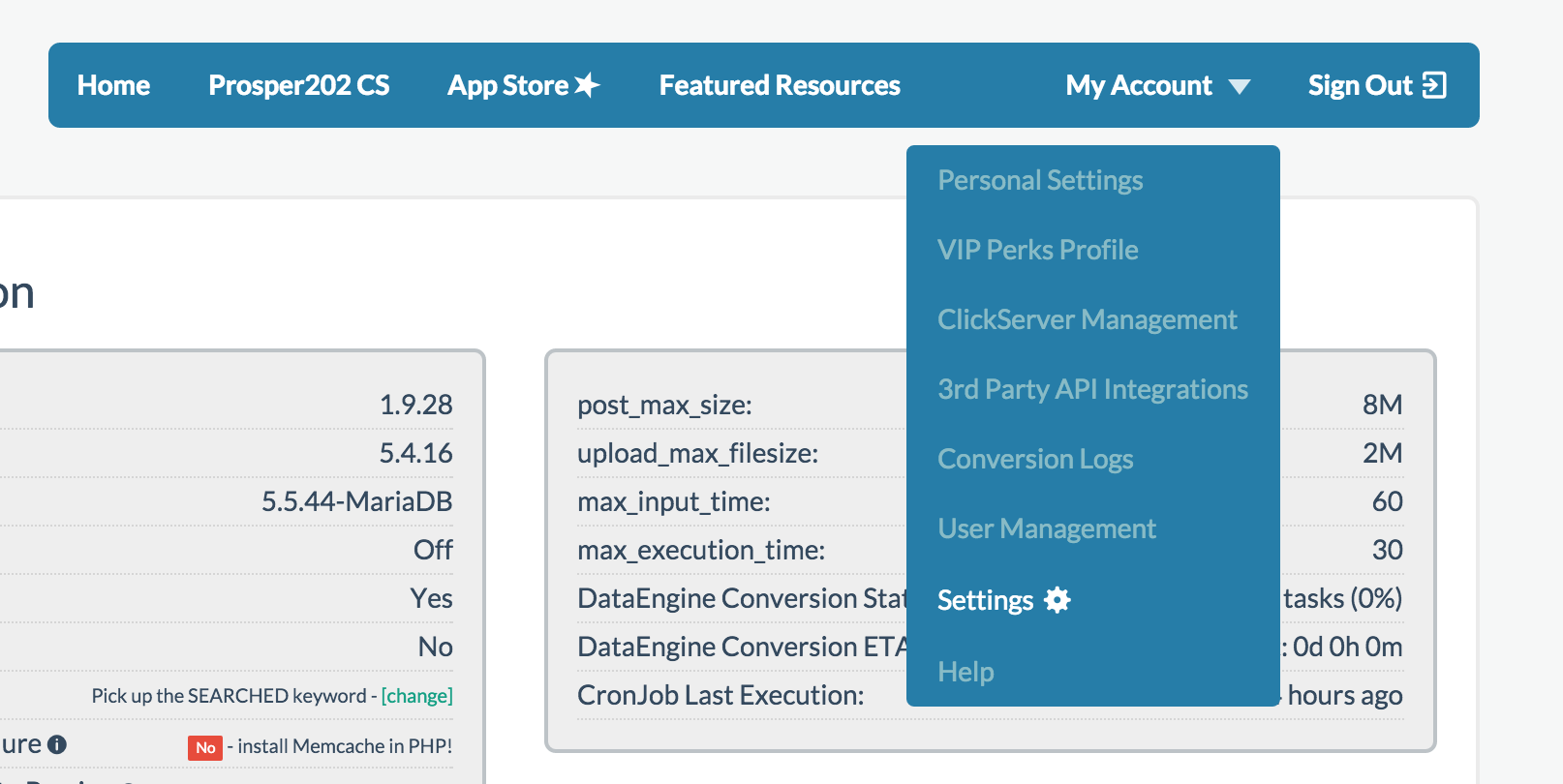
Once you have purchased your MaxMind ISP Database, download it in MMDB format and upload the GeoIP2-ISP.mmdb file to the 202-config/geo/ folder of your Prosper202 install. Keep that exact file name, since it is the one ClickServer looks for. If your server sets the P202_GEO_DIR environment variable, upload the file to that folder instead. The Settings page shows which folder your install uses. Once you've done that, go to your My Account > Settings inside of your Prosper202 install.
 Once there, find "ISP and carrier lookup", choose On and click Save. ClickServer only turns it on once it finds the database file.
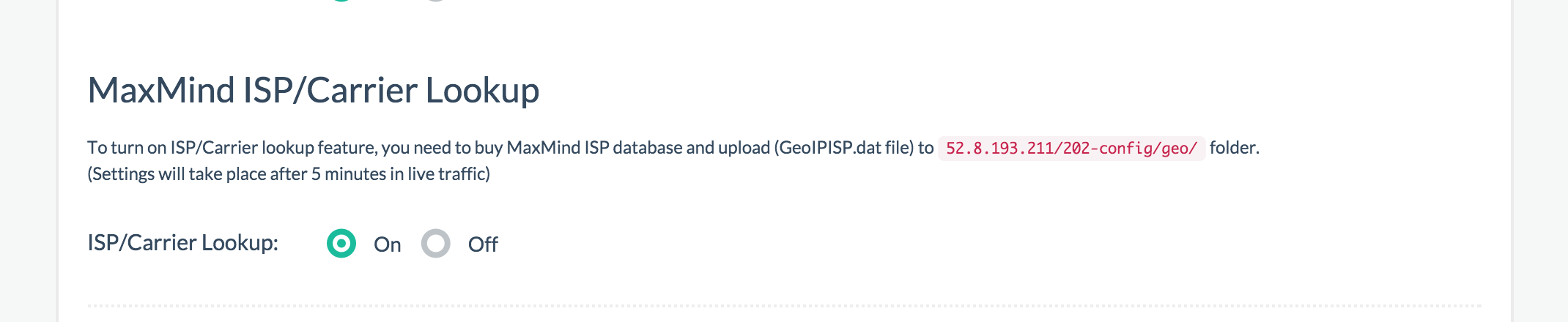 Once you've completed the steps above, live traffic picks up the change within five minutes.
Older installs may still have the legacy GeoIPISP.dat file. ClickServer falls back to it, in the same folder, when there is no GeoIP2-ISP.mmdb, but only if your PHP has the geoip extension. MaxMind retired its legacy .dat databases in 2022, so use the .mmdb file for a new setup.