Currently inside your Prosper202 Install, we support a number of 3rd party integrations available to you. Below are the three integrations you will find:
Direct Network Integration
Direct Network Integration allows you to quickly find and setup offers directly inside of Prosper202 without any manual work. You can review the section on Direct Network Integrations for more details about this. Click here to go there now.
No networks are live on DNI today. See DNI Networks for the current list and for other ways to get conversions from a network into Prosper202.
Clickbank Sales Notification
Clickbank doesn't support Postback or custom conversion pixels, so to get real-time reporting of sales you can setup our Clickbank Sales Notification integration.
Video: Setting Up Prosper202 and Clickbank Instant Notification
Slack Integration
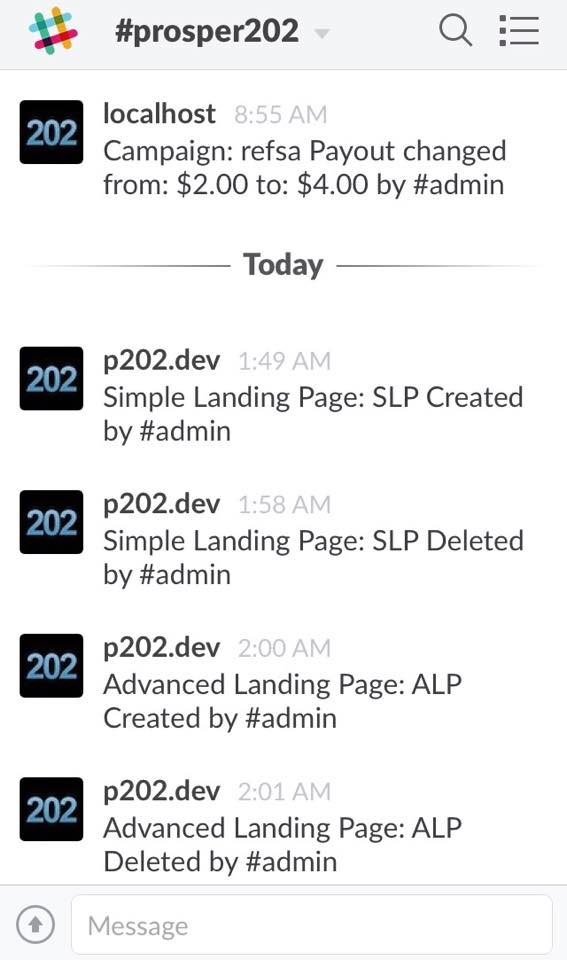
If you love using Slack and use it often as part of your workflow, then you might want to integrate Prosper into Slack. Our team uses Slack and we thought what could we do to help improve the process. By integrating Prosper202 into Slack, it will enable you to know exactly what every team member does in Prosper202 as soon as it happens? These notifications could then trigger a meaningful conversation.
Imagine this scenario, you get a notification on your phone alerting you that John just increased the payout settings on one of your top campaigns. This is going to affect your profitability and ability to scale in a good way. You ping John via Slack and find out the advertiser loves your traffic and can pay you more per lead. Jane, the campaign optimizer, immediately knows that she can start test bidding more aggressively to scale even faster. Before you even finish typing, you see a message from her stating that she's ramping up bids.
All this happens in a matter of minutes, and because everyone is on the same page, your team is in sync and working efficiently like a well tuned race car. This is just one example of what's possible once you setup your Slack integration in Prosper202. We've instrumented it to send meaningful notification for almost all actions that happen inside of Prosper202 Pro.
Another example is a feature that will help you to sleep soundly is the new intrusion detection alerts. We've always kept a log of the last 50 successful and non-successful login attempts into your Prosper202 account. But with our new integration with Slack, you also get real-time alerts when someone tries to login to your Prosper202 account unsuccessfully. You can then take immediate action to lock the user out.
Slack Integration Setup
Prosper202 posts to Slack through an incoming webhook that belongs to a Slack app. Slack's guide is Sending messages using incoming webhooks.
Step 1: Create a Slack app. Give it a name, such as Prosper202, and choose your workspace. If you already have an app for this, you can use it.
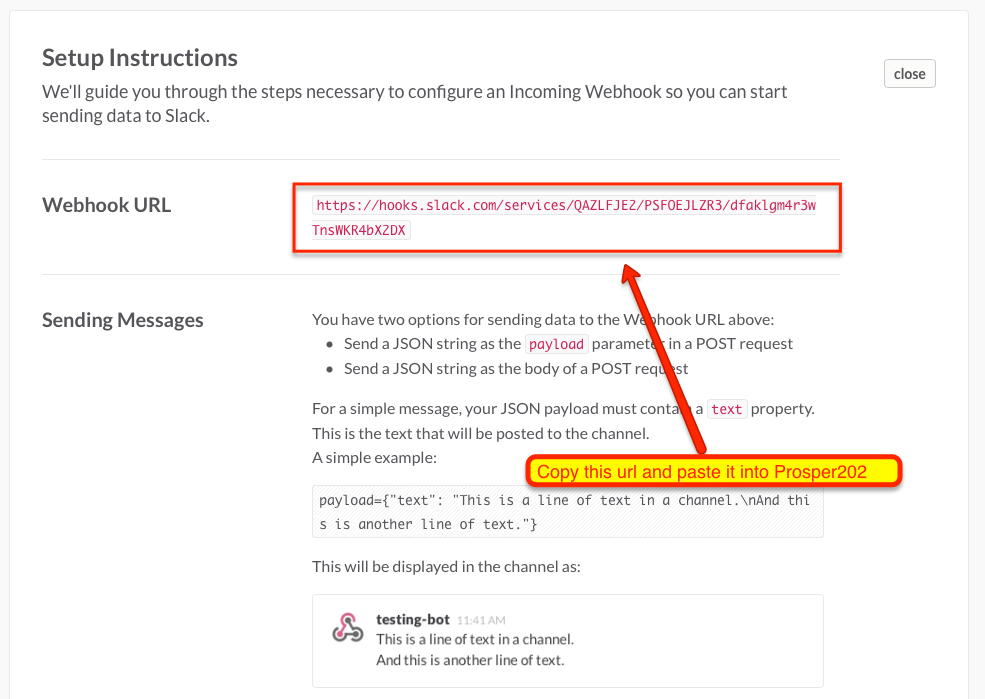
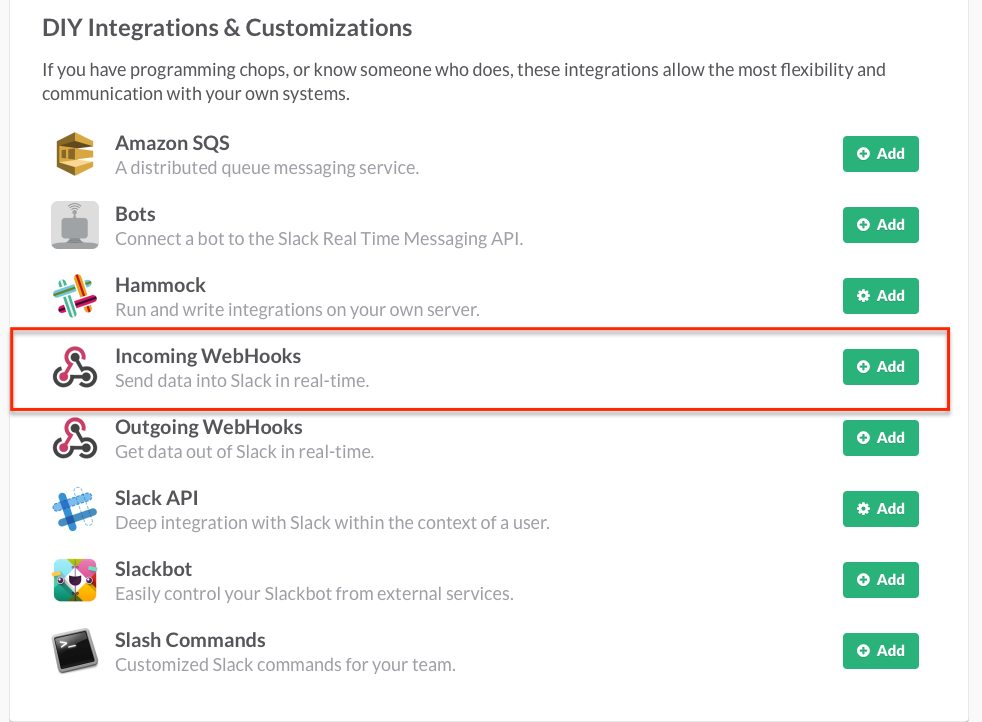 Step 2: In the app's settings, select Incoming Webhooks and turn on Activate Incoming Webhooks. Click Add New Webhook to Workspace, pick the channel Prosper202 should post to, then click Authorize. Back in the app settings, copy the new URL under Webhook URLs for Your Workspace. It starts with https://hooks.slack.com/services/. Slack treats this URL as a secret, so don't share it.
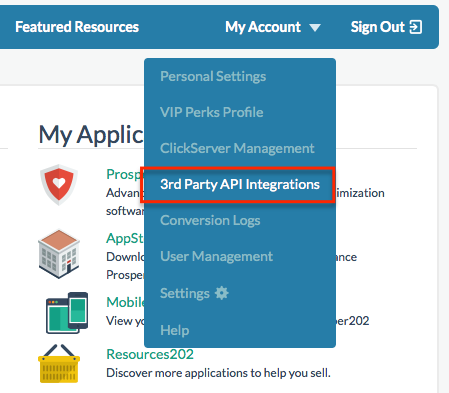
 Step 3: Go to the My Account menu in Prosper202 Pro and select 3rd Party API Integrations
 Step 4: In the Slack section, paste the webhook URL into Slack incoming webhook URL and save
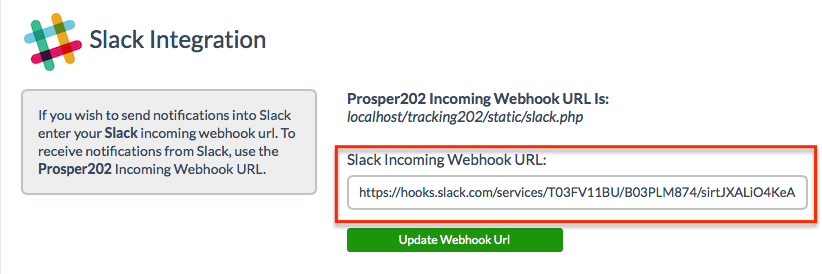 Step 5: There is no step 5. Start receiving real time Prosper202 Pro notifications sent to your Slack