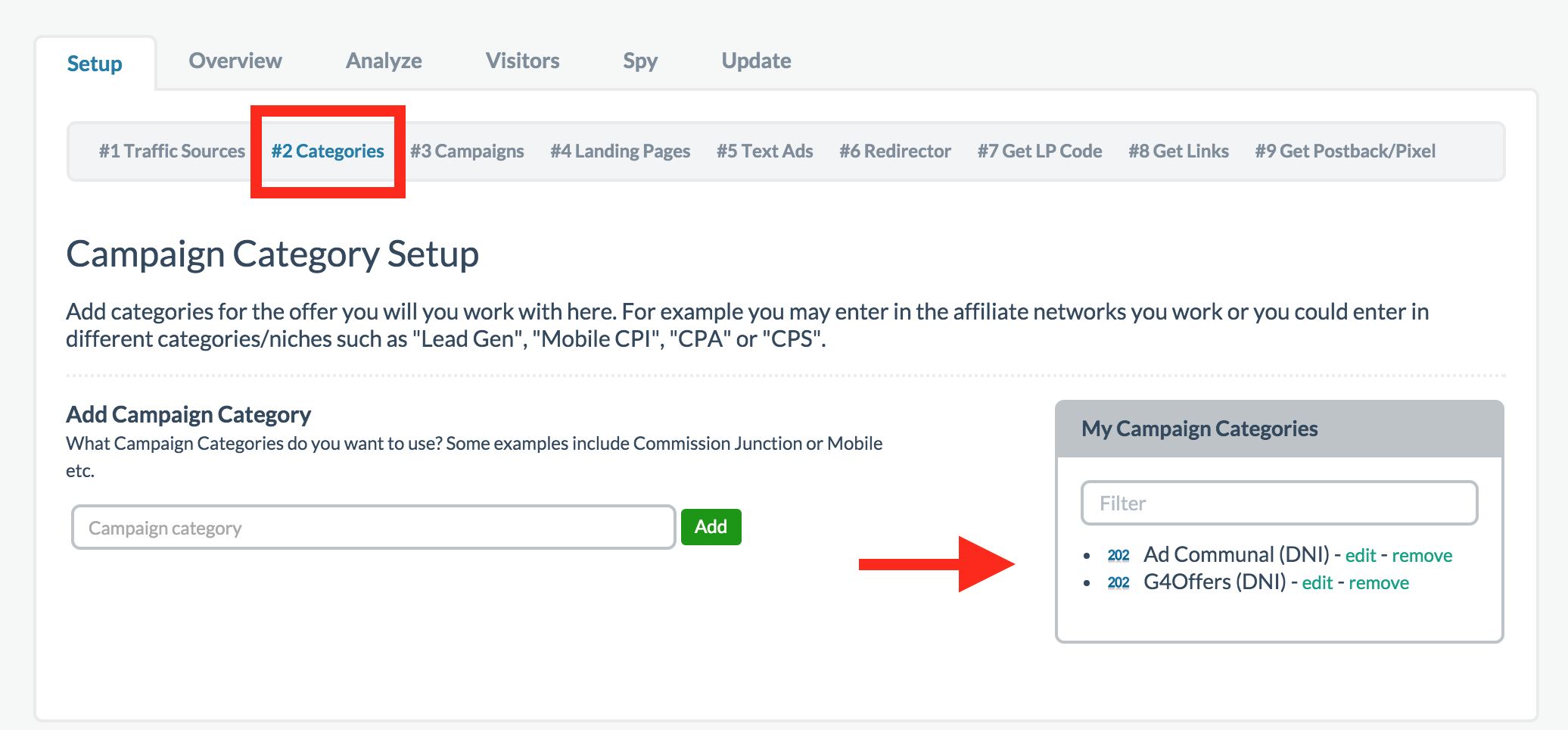
To navigate to step 2, simply click on the step 2 link in the sub-navigation bar labeled "#2 Categories" as shown in the red box in the image below. Once there, simply enter the type of offer you're looking to promote or the affiliate network you are promoting offers from.
The Categories section useful for grouping similar campaigns together. Later on when running reports, you will be able to quickly compare the performance of all campaigns in a category. In general, we normally add Networks in this section but you can also go by other things such as Mobile Offers for grouping all mobile offers together and such.
Adding Networks
In the example below, you'll see two networks, AdCommunal and G4Offers, which were Direct Network Integration (DNI) partner networks when the screenshot was taken. Any network you work with today, you add here yourself. The difference between adding networks or offers yourself and DNI is that DNI is a fully integrated experience allowing you to search and browse offers from within Prosper and do a one click setup to avoid common errors.
DNI Partner Networks
To get an understanding of how DNI works in Prosper, see Direct Network Integrations.
Networks with a DNI appear on the DNI Networks page, and none are live today. Because DNI requires a business partnership and a technical integration, we can't add a network until it agrees to be part of the program. If there is a network you'd like to see integrated on a DNI level with Prosper, please let your network and affiliate manager know. The more people who opens up and let them know, the more likely we'll be able to open up a dialog to make it happen.
DNI partner categories are created automatically and you can differentiate them from regular categories by the fact that they have a custom icon and (DNI) after the name.
 Once you've added all your offers or networks, you can click on sub-navigation link #3 titled "#3 Campaigns", to proceed to the next step. Click here to proceed to Step 3.