Pre-requisites
If you haven't done so already, download the latest version of Prosper202 and follow our installation instructions.
Once you've completed these steps, the following guide will help walk you through setting up a campaign.
Support
Please note that we do not offer free support. If you require any assistance or need support in any way beyond what is available on this site, you can subscribe to one of our support plans.
Because of this, we strongly recommend you browse around this site and review all of the information here.
Prosper202 Customer API Key
Your Prosper202 Customer API key links your install to your account at my.tracking202.com, where you download Prosper202 and buy support plans. Prosper202 ClickServer uses the key for paid features (the p202 CLI checks it for a Pro licence), upgrades, the chat box and the Landing Page Optimizer.
Please note this is not to be confused with your Prosper202 API key found inside your Prosper under personal settings as that's for access to your Prosper202 API.
The setup wizard asks for the Customer API key before it creates your admin account (the wizard calls it your license key). Its Get my API key button takes you to my.tracking202.com to sign in, then brings you back with the key filled in for you. If you don't have an account yet, create a free one; see Installation. Then click Save the key and continue to move on to your admin account. The wizard checks the key with my.tracking202.com when you submit that form, and won’t install with a key it can’t confirm.
To change the key later, go to My Account > Personal Settings in ClickServer, paste the key into the Prosper202 customer API key section and click Save key. ClickServer checks the key with my.tracking202.com before it saves it.
Prosper202 Upgrade Message
The download in your free account at my.tracking202.com is the latest release, so a fresh install is up to date. There is no upgrade fee.
When a newer release comes out, ClickServer shows a notice under the header that a new version of Prosper202 is available. From there you can upgrade in one click, or download the upgrade files and upgrade by hand. The 1-Click Upgrade uses your Customer API key: if ClickServer says the key is missing, save it in Personal Settings as described above. Back up your database and your 202-config.php file before you upgrade; see Upgrading Prosper202.
Accessing Prosper202 ClickServer
Prosper202 ClickServer is the name of the actual tracking software inside Prosper202. Once you've installed and logged into Prosper202, the first thing you'll see is the screen below. Assuming its a brand new install and you just downloaded Prosper, you should be on the latest release. If for any reason you see what is highlighted in the green box below, it means you have an older version and we strongly recommend you upgrade your Prosper202 before proceeding. Please refer to the upgrade section on this site for assistance with this if needed.
Please also note that we do not support older versions of Prosper202, bugs or otherwise included, simply because newer versions may have resolved any issues you may have. Therefore, if you require assistance relating to issues with Prosper, we will always require that you upgrade first. Some users have reported issues with upgrading to newer versions. Unfortunately, if you have tried to upgrade but there were issues, it could possibly be an issue with your server config. We can help with this through our consulting, which is billed hourly; the current rate is on my.tracking202.com.
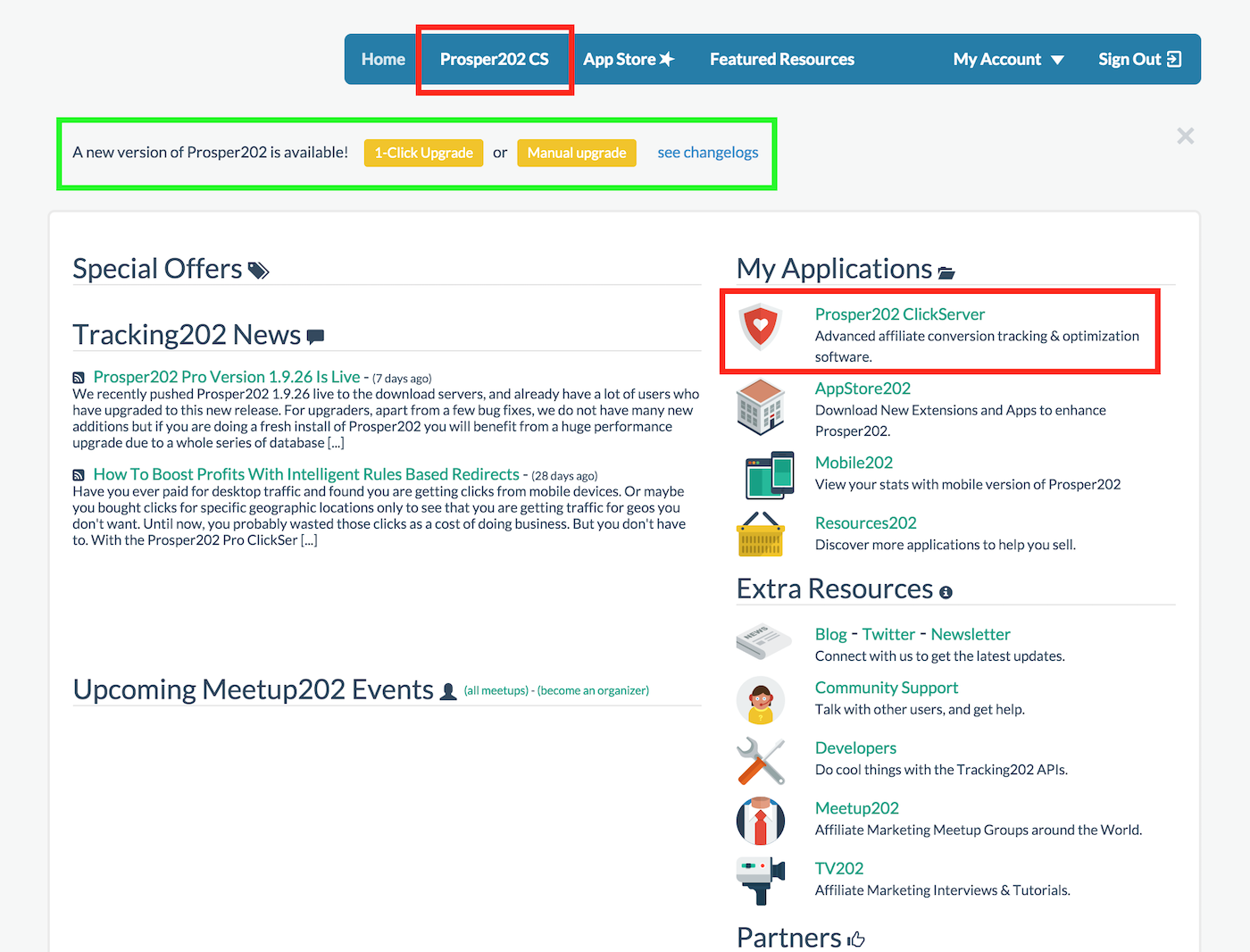 If you're already on the latest version, please proceed as follows. Click on Prosper202 CS (short for Prosper202 ClickServer) to get started. You can do so by clicking on either area marked by the red boxes (as shown above). Both will get you access to Prosper202 CS which is your actual tracking software.
Once inside, by default, you are you on the Overview screen. You should see a Setup tab. Please click on that as shown below marked by the red box to get into Setup (as shown below).
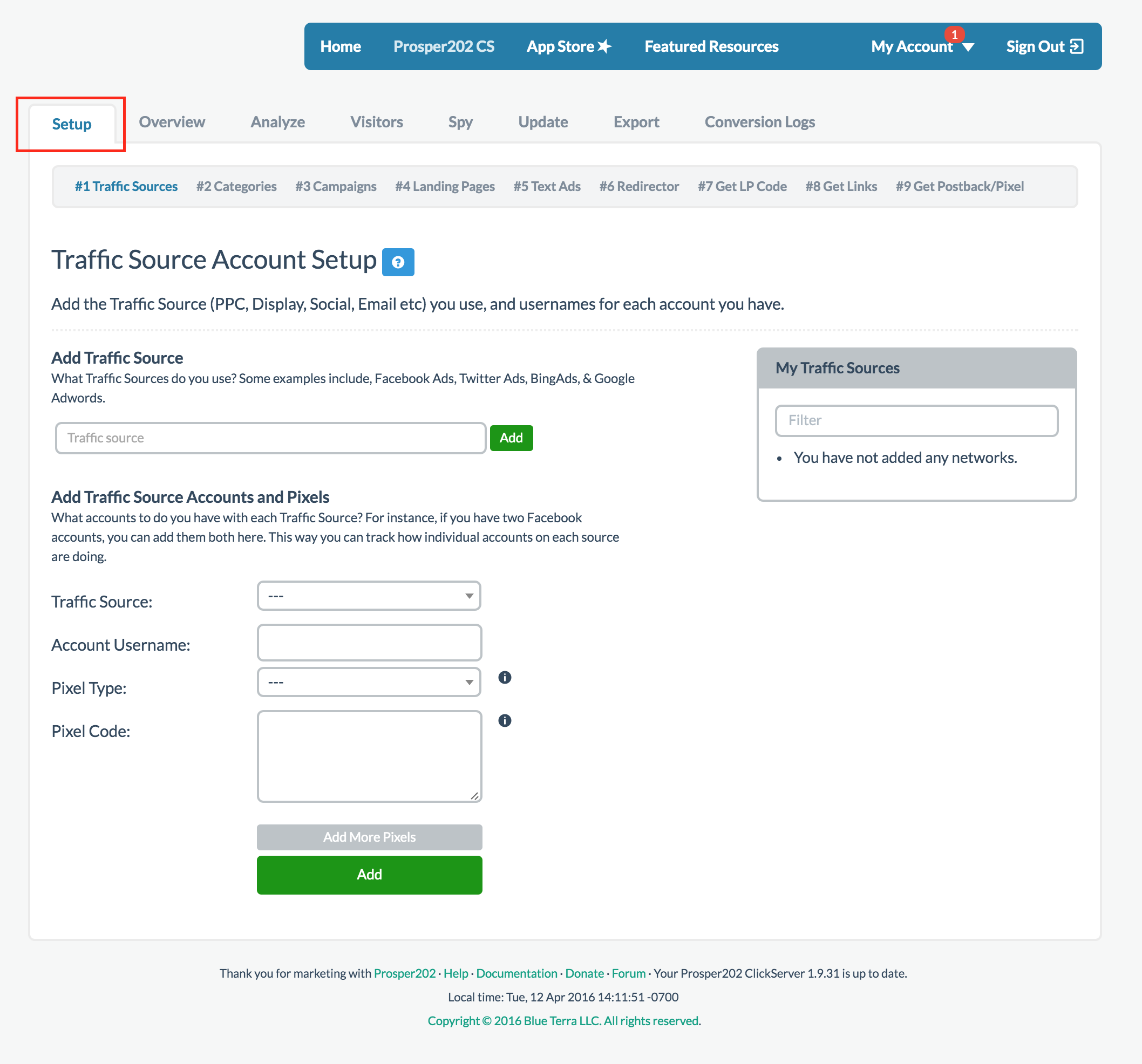 Once you clicked on Setup, by default you are on Step 1 of the setup process.