Prosper202 1.9.78 lets you ask an AI assistant about your campaigns, in plain English. Connect Claude, ChatGPT or another assistant to your own Prosper202, then ask it which ads brought the most trial sign-ups last week, which landing page sells best on mobile, or where your spend stopped paying off. It reads your real reports and answers in seconds. If you allow it, it can also draft changes for you to approve.
Your tracking data stays on your server. You decide what the assistant may do, and you can remove it at any time.
Ask your tracker, don't dig through it
Most questions about a campaign take a few clicks and a spreadsheet to answer. Now you can ask them the way you would ask a colleague:
- "Which Google Ads campaign brought the most free-trial sign-ups this week, and what did each one cost?"
- "Compare mobile and desktop for our spring sale landing pages: which converts better?"
- "Which keywords spent more than $200 last month without a single demo request?"
The assistant runs the same reports you would, on your live data, and explains what it found. It works with Claude (including Claude Desktop and Claude Code), ChatGPT, Cursor and other apps that support MCP, the open standard AI apps use to connect to tools.
You choose how much it can do
When you connect an assistant, you approve it on your own Prosper202, signed in as yourself, and pick one of three levels. Try them:
Read only is the safe start, and what the approval page suggests. The assistant reads your reports, campaigns, landing pages, traffic sources, clicks and conversions, as far as your own user role allows, and changes nothing.
- Ask: "Which campaign had the best cost per sign-up yesterday?"
- It can't pause, edit or delete anything.
Propose changes lets the assistant draft changes, such as renaming a campaign or updating a landing page URL, but nothing happens until you apply them yourself.
- Ask: "Set up tracking for our new pricing page."
- Each change waits as a proposal for you to review and apply.
Read and change lets the assistant make changes directly. Your AI app still asks before each change, so keep that prompt on, and don't set it to always allow deletes.
- Ask: "Rename last quarter's campaigns to our new naming scheme."
- Best for people who already work this way with their AI app.
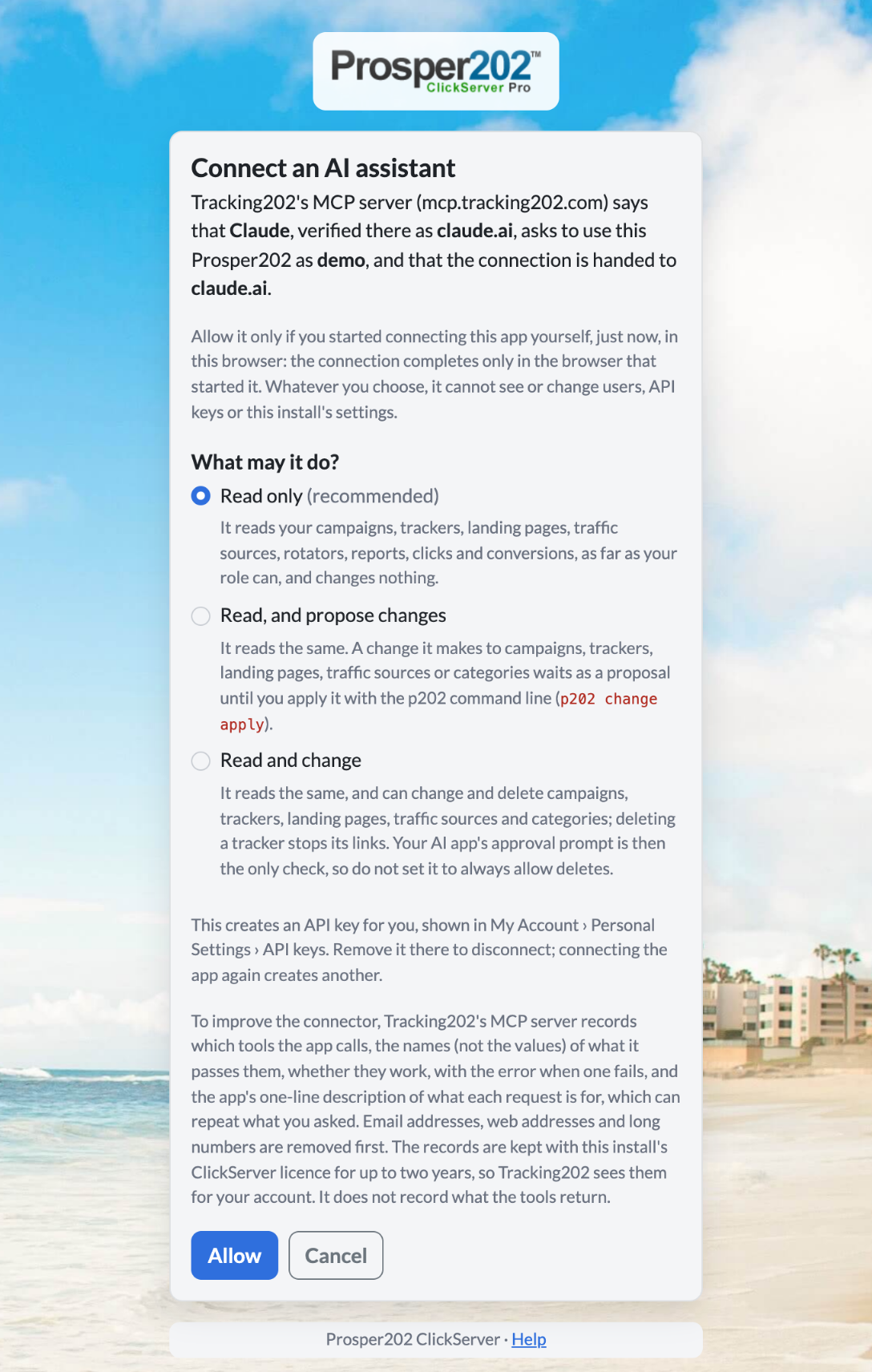
Every connection gets its own key, named after the app, so you can see at a glance which assistants have access and remove one in a click under My Account › Personal Settings › API keys.
Connecting takes a couple of minutes. Follow the step-by-step guide.
Also in 1.9.78
- Your tracking parameters reach your pages again. Direct links once more pass the click's values, from c1 to c4, the gclid and your UTM tags, to the page you send visitors to, so your site and analytics see where each visit came from.
- Every URL in a rotation gets its turn. A redirector rule that rotates between several URLs now spreads visitors across all of them.
- See who tried to sign in. The sign-in log shows whether each attempt passed, failed or didn't complete.
- Smoother setup. A new install no longer stops at the licence-key step, and AutoCron can be switched on from Settings.
- Pages tell you when something didn't save, instead of looking as if it had.

For developers and self-hosters
- On your own computer:
p202 mcpserves Prosper202 to local AI apps through the Go CLI.p202 mcp --read-onlyserves reads only, andp202 --staged mcpturns every write into a proposal, which you apply withp202 change apply. Each tool is marked read-only or destructive, so the app asks before a write. - Hosted apps such as claude.ai connect through
https://mcp.tracking202.com/mcp(with/mcpat the end; in ChatGPT, custom connectors need developer mode). The install must be reachable over HTTPS, and each request reads about 1 MB at most, so ask large installs for less. - Missing a tool? The assistant can look for one (
get_more_tools), including tools that need more access. - The hosted connector records which tools an app calls, its argument names (not values), whether they worked and the app's one-line description of each request, kept with your ClickServer licence for up to two years. Both ways of connecting need a Prosper202 ClickServer Pro subscription or trial.
- Requirements: PHP 8.3+, MySQL 8.0+ or MariaDB 10.6+. Building the Go CLI needs Go 1.25. The Docker image is built on PHP 8.3.36.
Upgrade today
1.9.78 includes security fixes, so update every install as soon as you can. Back up your database first: an upgrade changes it in place and there is no downgrade. Then follow Upgrading Prosper202. The release notes list every change.