Since 1.9.78 you can connect Claude, ChatGPT or another AI assistant to your Prosper202 and ask it about your campaigns in plain English. Here's how to set it up in a few minutes, and how to keep it on a short leash.
Before you start
- Your install runs Prosper202 1.9.78 or later, with a ClickServer Pro subscription or the free trial.
- For claude.ai, ChatGPT and other hosted apps, your install must be reachable from the internet over HTTPS. Apps on your own computer don't need that.
- You sign in as a user who can open My Account › Personal Settings, because connecting creates an API key for you.
Connect claude.ai or ChatGPT
- Add the connector. In claude.ai, open Settings › Connectors and choose Add custom connector. In ChatGPT, first turn on Developer mode under Settings › Apps & Connectors › Advanced settings. Enter the address exactly as written, with
/mcpat the end:https://mcp.tracking202.com/mcp - Sign in to your own Prosper202. The app sends you to your install. Sign in as yourself.
- Choose what the assistant may do, then approve. The page shows which app is asking and where the connection goes.
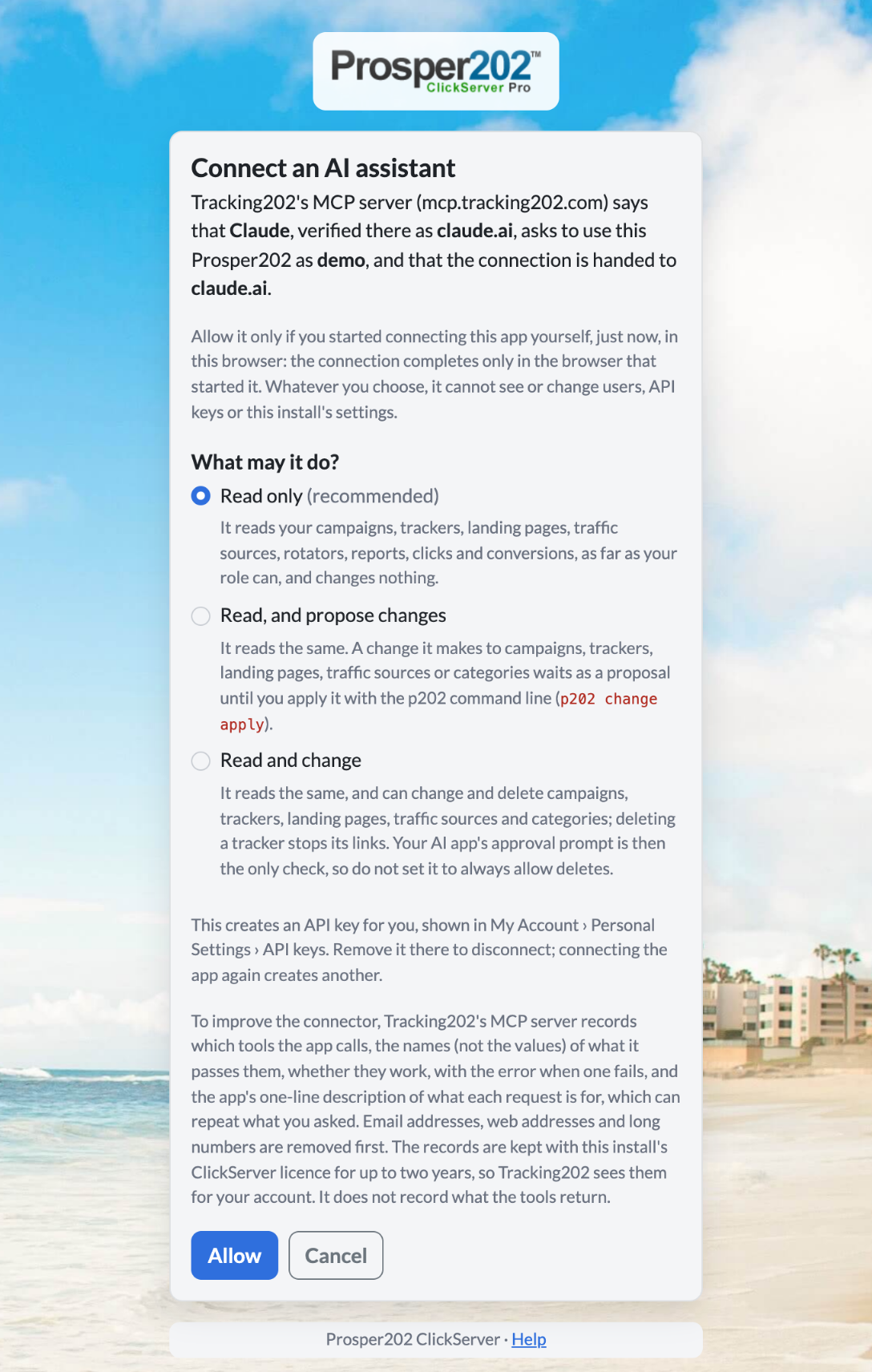
Read only: reports, campaigns, landing pages, traffic sources, clicks and conversions, as far as your role allows. Nothing changes. Start here.
Propose changes: the assistant drafts changes, and each one waits until you review and apply it.
Read and change: the assistant makes changes itself. Your AI app's approval prompt is then the only check, so don't set it to always allow deletes.
Try your first questions
- "Which traffic source brought the most trial sign-ups last week, and at what cost per sign-up?"
- "Show yesterday's purchases by landing page, mobile against desktop."
- "Which keywords spent the most without a single demo request this month?"
On a very large install, a hosted assistant reads up to about 1 MB per question. If it says the answer is too big, narrow the question: a shorter date range, one campaign, or fewer rows.
See or remove a connection
Each connection is an API key of your user, labelled AI: <app> via mcp.tracking202.com, under My Account › Personal Settings › API keys. Delete the key and the assistant is disconnected straight away.
Prefer to keep it on your computer?
Claude Desktop, Claude Code, Cursor and other apps that run MCP servers locally can use the Prosper202 command line instead: p202 mcp. Add --read-only to serve reads only, or run p202 --staged mcp to turn every write into a proposal you apply with p202 change apply. There's no size limit this way, and your install doesn't need to be public. The Prosper202 for AI assistants page has each app's setup.