Every tracker has to decide which clicks are real. Count your own team's test clicks and a campaign looks busier than it is; filter a client's office by mistake and a good landing page looks dead. Since 1.9.79 you make that call in Prosper202, and each filtered click records which rule caught it.
This takes about five minutes. You need Prosper202 1.9.79 or later.
How filtering works
Filtering never loses a visitor. Every click is recorded and redirected as usual. A filtered click appears under Filtered clicks and is left out of Real clicks, which is what your reports count by default. Changes apply to clicks from the moment you save; clicks already recorded keep how they were counted.
Step 1: Choose your checks
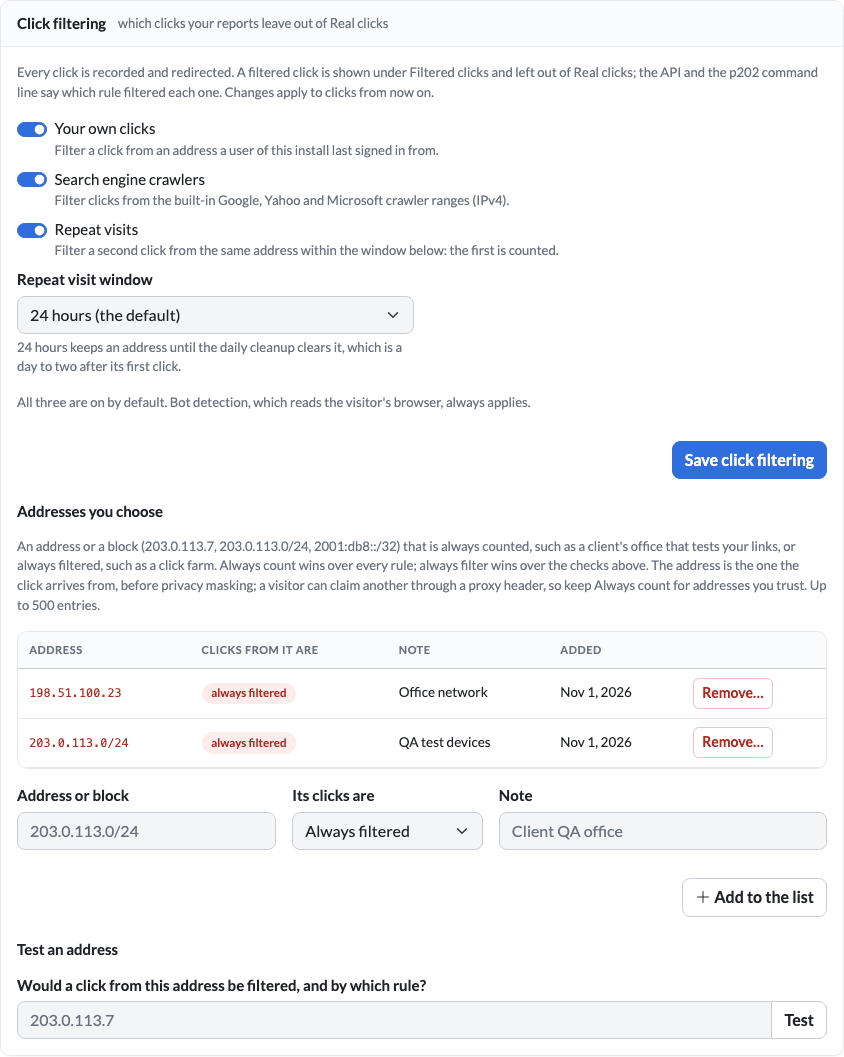
Open My Account › Personal Settings › Click filtering. There are three switches, all on by default:
- Your own clicks filters a click from an address a user of your install last signed in from. Keep it on unless your team are also your customers, for example staff buying from your own store.
- Search engine crawlers filters Google, Yahoo and Microsoft's published crawler ranges.
- Repeat visits filters a second click from the same address within the window you choose; the first is counted.
Bot detection, which reads the visitor's browser, always applies.
Step 2: Pick a repeat-visit window
Choose 1 hour, 6 hours, 24 hours (the default) or 7 days. A shorter window suits impulse purchases, where a shopper who comes back that evening is a fresh decision. For a long consideration cycle, such as a B2B demo request, a longer window means one prospect clicking your ad several times while comparing vendors counts once. Press Save click filtering.
Step 3: Add the addresses you know
Under Addresses you choose, add a single address or a whole block, choose whether its clicks are Always counted or Always filtered, and leave a note so the next person knows why. For example:
- Your QA team's test devices on
203.0.113.0/24: always filtered, note "QA test devices". - A client's office at
198.51.100.23whose staff really do buy from the store: always counted, note "Client office, real orders".
Two rules decide a conflict: always counted wins over every other rule, and always filtered wins over the checks above. Because a visitor can claim another address through a proxy header, use always counted only for addresses you trust. The list holds up to 500 entries.
Step 4: Test an address
Type an address in Test an address and press Test. Prosper202 tells you whether a click from it would be filtered, and by which rule. It's the quickest way to answer "why didn't my test click show up?"
Step 5: See why a click was filtered
Every click filtered from 1.9.79 on records its reason: your own sign-in address, a crawler range, a repeat visit, an entry on your list (and which one), or a bot. When a campaign's real clicks look low, check the filtered clicks to see which rule caught them.
For developers
GET /clicksandGET /clicks/{id}answerfilter_reason:sign_in_address,crawler_range,repeat_visit,filter_list(withfilter_entry_id) orbot. A click filtered before 1.9.79 answersnull, except a bot click.p202 click list --filter-reason repeat_visitlists the clicks one rule filtered.- The settings and the address list can also be managed with the
p202CLI and by a connected AI assistant, within the access you gave it:p202 click-filter set --repeat-window 6h, for example.
New to 1.9.79? Read what else is in the release.